How To Maintain Website On Hawkhost
How To Maintain Website on HawkHost
Keeping a website running smoothly isn’t just about getting it online once. After you launch, maintenance determines whether your site stays fast, secure, and search-friendly. HawkHost makes hosting straightforward, but you still need a routine to handle updates, backups, performance checks, and security. This guide walks you through practical steps you can follow whether your site is a simple HTML project, a WordPress install, or a more custom setup.
What “website maintenance” really means
Website maintenance covers several ongoing tasks:
- Security: preventing malware, blocking unauthorized access, and keeping software current.
- Updates: updating your CMS (if you use one), themes/plugins, and server-side components when needed.
- Backups: ensuring you can restore your site quickly if something goes wrong.
- Performance: monitoring load times, reducing errors, and keeping hosting resources healthy.
- Content upkeep: checking links, updating pages, and reviewing SEO basics.
- Monitoring: watching uptime, disk space, bandwidth usage, and error logs.
Think of it like regular servicing for a car—small checks often prevent bigger, more expensive issues later.
Set up your HawkHost environment properly
Before you even start maintaining your site day-to-day, make sure your hosting account is configured in a sensible way.
Use the right access method
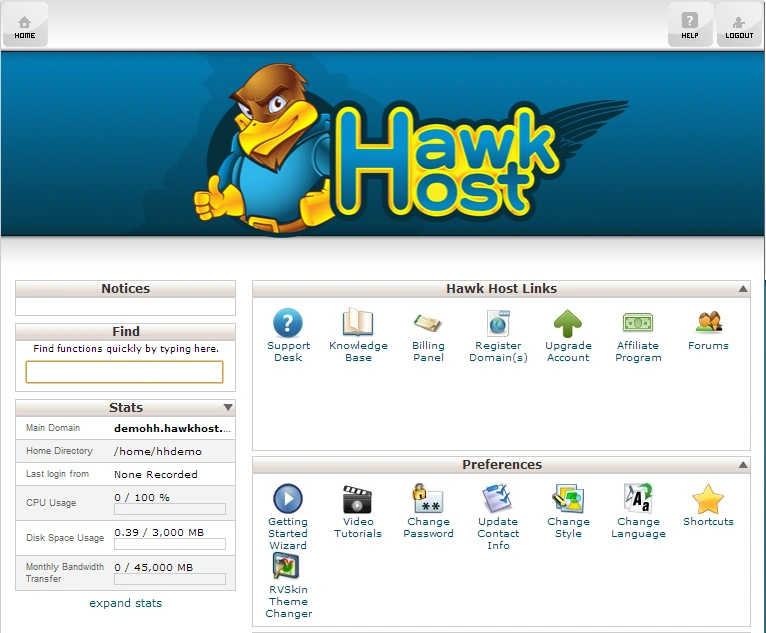
Most HawkHost users manage sites using a hosting control panel (often cPanel-style) plus file management and database tools. Familiarize yourself with:
- File Manager / FTP / SFTP
- Databases (MySQL/MariaDB)
- Email accounts
- Cron jobs (if supported)
- Security features (if available)
- Backups options
If you’re comfortable with only one method (like editing files via FTP), still learn the control panel basics. It will save time when you need to restore files, check logs, or manage databases.
Keep contact information current
Make sure recovery emails and account details are accurate. If HawkHost sends important security or billing notices, you’ll want them to reach the right inbox.
Security maintenance: the most important part
Security isn’t a one-time task. A good maintenance routine includes at least a few checks per month.
Keep software up to date
If your website uses a CMS such as WordPress, Joomla, or Drupal, update regularly. Outdated themes and plugins are common entry points for attackers.
- Update the core system
- Update themes
- Update plugins/extensions
- Remove anything you don’t use
If updates cause issues, it’s often safer to update gradually (one component at a time), especially on sites with custom features.
Use strong passwords and limit access
For your HawkHost account and site admin areas:
- Use unique, strong passwords (not reused across accounts)
- Disable or delete unused admin accounts
- Only grant access to people who need it
- If your provider supports it, consider enabling additional protections like IP restrictions
Enable HTTPS and renew certificates
SSL/TLS is essential for security and SEO. Confirm your site is running on HTTPS and that certificates renew automatically (if that’s how your setup works). If renewal fails, you may get browser warnings that hurt trust and rankings.
Review security logs and error reports
If your hosting control panel provides logs (or if you can access them via server tools), check for repeated suspicious activity:
- repeated failed login attempts
- unusual traffic spikes
- file changes in unexpected directories
You don’t need to obsess over logs daily, but reviewing them during scheduled maintenance helps you catch problems early.
Backups: your safety net
Backups are what allow you to recover quickly if you experience hacking, accidental deletion, or a broken update.
Use automated backups if available
Many hosts provide automatic backups. If HawkHost offers this feature in your plan, turn it on and verify:
- How often backups run (daily, weekly, etc.)
- Where backups are stored
- How long they’re retained
- Whether you can restore from your panel
Also create manual backups before changes
Whenever you plan to update major plugins/themes, change server settings, or modify core site files, create a manual backup first. This is especially important before large updates or migrations.
Test restoration (yes, really)
A backup that you can’t restore isn’t much help. Periodically (for example, quarterly), practice restoring a backup in a test environment or confirm the process works.
Performance and reliability checks
A fast website improves user experience and can help SEO. Maintenance includes monitoring and simple optimizations that keep your site healthy.
Monitor uptime and site errors
Look for:
- pages returning 404 or 500 errors
- broken links
- forms not submitting
- sudden spikes in traffic (which can indicate scraping or an attack)
If HawkHost provides monitoring tools, use them. If not, consider using a third-party uptime monitoring service.
Check disk space and database size
Running out of storage or having a bloated database can cause downtime or slow performance.
- Confirm you still have free disk space
- Periodically optimize databases (especially if your CMS is used)
- Clean up temporary files and old uploads you no longer need
Reduce resource-heavy content
Some maintenance steps are simple but effective:
- compress images (use modern formats when possible)
- avoid oversized video files on the server (use external hosting or CDNs)
- limit how many plugins or scripts you load
- remove unused CSS/JS and scripts
Even if your hosting is strong, inefficient content can drag down performance.
Consider caching and CDN options
If your CMS supports caching and if HawkHost offers caching features, enable them. A CDN can also reduce load times by serving content from locations closer to visitors.
File and content management
Even if everything is secure and fast, content and file organization still matters.
Keep your site structure clean
Maintain a tidy structure:
- remove old pages that no longer matter (or redirect them)
- update navigation menus
- ensure URLs follow a consistent pattern
- store uploads in predictable folders
Regularly check forms, emails, and scripts
Many sites fail quietly:
- Contact forms stop working after updates
- Email settings change
- Cron jobs don’t run anymore
Test key features:
- newsletter signup
- contact form
- account pages or login flows (if applicable)
Review SEO basics without overcomplicating it
Maintenance should include routine checks such as:
- page titles and meta descriptions are accurate
- your sitemap is up to date
- important pages aren’t blocked by robots.txt
- you’re not duplicating content accidentally
If you already use an SEO plugin (for WordPress), review it during maintenance but don’t assume it’s “set and forget.”
Guide: a simple monthly maintenance schedule
Use this practical routine to stay on top of things without spending hours every week.
Weekly (20–30 minutes)
- Check site performance (quick load test)
- Review error logs if available
- Confirm there were no recent downtime issues
- Look for suspicious login attempts (if logs show that)
Monthly (1–2 hours)
- Update CMS core, plugins/themes (or at least evaluate for updates)
- Remove unused plugins/themes
- Verify backups are running successfully
- Test restore process (light check, or document how it works)
- Review database size and optimize if needed
- Check for broken links and outdated content
Quarterly (2–4 hours)
- Do a full security review (permissions, user accounts, file changes)
- Perform a staging/test update if your site is complex
- Audit performance: image sizes, caching, page speed
- Confirm uptime monitoring (or set up monitoring if you don’t have it)
Before major changes
- Backup first
- Test updates in a staging environment if possible
- Roll back quickly if anything breaks
Pros / Cons of doing maintenance on HawkHost
Pros
- Control and flexibility: You can manage files, databases, and settings directly through typical hosting tools.
- Security and backups support: Many HawkHost plans include features that help automate important tasks.
- Scales with your needs: Whether you run a small site or a more complex setup, maintenance routines remain manageable.
- Clear hosting workflow: Using a standard panel and server tools makes routine checks easier.
Cons
- Maintenance still depends on you: Hosting won’t automatically fix outdated plugins, broken content, or performance issues.
- Manual monitoring may be required: If you don’t set up monitoring tools, you might notice issues only after users do.
- Updates can introduce compatibility problems: Especially for CMS sites, new plugin/theme versions may require testing.
The key is to adopt a routine so maintenance becomes predictable, not stressful.
Keeping everything running long-term
Maintaining your website on HawkHost comes down to a few reliable habits: keep software updated, secure access, back up often, and monitor performance and errors. When you treat maintenance like a schedule—not a reaction—you reduce downtime, improve user trust, and protect your search visibility.
If you want, tell me what type of site you’re running on HawkHost (WordPress, custom HTML, Laravel, etc.), and I can suggest a tighter maintenance checklist tailored to your setup.
🚀 Sign Up for hawkhost
Register for hawkhost here to receive a “lifetime discount” of up to 20%