How To Create MySQL Database On Hawkhost

How To Create MySQL Database On Hawkhost
If you’ve signed up with Hawkhost and you’re ready to build a website, you’ll eventually need a MySQL database. Most content management systems (like WordPress), web apps, and custom projects require a database to store posts, pages, user accounts, and settings.
The good news: creating a MySQL database on Hawkhost is straightforward once you know where to click. Below, you’ll find a clear walkthrough, plus some practical tips to avoid common mistakes.
Setting up your MySQL database in Hawkhost
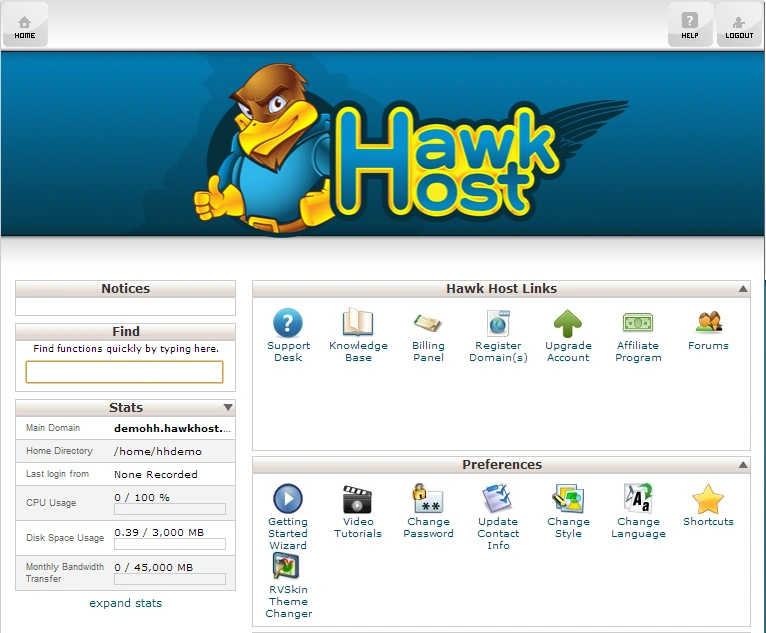
Hawkhost accounts typically come with hosting control panels that let you manage databases. Depending on your plan and configuration, you may see options like cPanel, Plesk, or a custom hosting dashboard. The exact layout can vary, but the overall process is almost always the same:
1) Log in to your Hawkhost control panel
Start by signing into your Hawkhost customer account. From there, open your hosting control panel.
Look for a section related to databases. Common menu labels include:
- Databases
- MySQL Databases
- phpMyAdmin
- Database Management
If you don’t see MySQL options immediately, search the dashboard for “MySQL,” “Database,” or “phpMyAdmin.”
2) Create a new database
Once you’re in the database section, you should see an option to create a new database.
You’ll generally be asked to:
- Choose a database name
- (Sometimes) confirm the database host (often something like
localhost) - Click Create Database
Tip: Use a name that’s easy to remember, but avoid spaces or special characters. Many hosts also apply a prefix automatically for security and organization. Your final database name may look different from what you type.
3) Create a MySQL user (database account)
Next, you need a MySQL user. This account will be used by your website to access the database.
You’ll typically enter:
- Username
- Password
- Password confirmation
Use a strong password. If your control panel offers a password generator, that’s usually the easiest route. A good database password should be unique and not reused anywhere else.
After entering these details, click Create User (or the equivalent button).
4) Grant the user permission to the database
Creating the database and user is only half the job. You must connect them by assigning privileges.
In most panels, you’ll see a section like:
- Add User to Database
- Manage User Permissions
- Database Privileges
Select your database and user, then choose privileges. For many applications you can grant:
- All Privileges (common for CMS setups)
Click Add / Assign Privileges / Save Changes to complete the permission step.
5) Record the database connection details
Before you move on, write down the connection information your app will need:
You’ll usually need:
- Database name
- Database username
- Database password
- Database host (often
localhost, but can be different)
Some control panels also show a connection string format.
Important: Keep this information secure. Anyone with access to these credentials can potentially read or modify your database.
If you need to create tables or import a database (optional)
There are two common scenarios where you’ll do more after creating the database:
Option A: Access phpMyAdmin
Many hosts provide phpMyAdmin, a web tool that helps you manage databases.
In your dashboard, look for phpMyAdmin under a “Databases” section. Once you open it:
- Select your new database from the left sidebar
- Create tables manually, or
- Import a database backup (SQL file)
Option B: Import a SQL file
If you’re migrating a website or installing an app that includes a prebuilt database, you may receive an .sql file.
In phpMyAdmin:
- Choose your database
- Click Import
- Select the
.sqlfile - Start the import and wait for it to complete
If the import fails, it can be due to file size limits, encoding issues, or permission problems.
Guide: Connect the database to your website/app
After creating the database and user, the next step is telling your application how to connect.
Most web apps offer a configuration file or installation step where you enter database details. For example, WordPress installation typically asks for:
- Database name
- Username
- Password
- Database host
Common host values
- localhost is very common
- In some setups, the host may look like an internal server value (you’ll see it in your database info)
Double-check for typos
A surprising number of installation issues come down to one small error:
- Wrong database name (including missing prefix)
- Wrong username
- Incorrect password
- Wrong database host
If your app shows “Error establishing a database connection,” verify these values first.
Pros / Cons of creating a database this way
Pros
- Straightforward process: Most hosting control panels guide you through database creation step-by-step.
- Better security: Using a dedicated database user with proper permissions is safer than using shared credentials.
- Flexible management: You can manage tables and data through phpMyAdmin without needing extra tools.
- Works with most apps: CMS and custom apps usually support the standard MySQL connection setup.
Cons
- Control panel differences: The menu names and exact steps can vary, which can confuse beginners.
- Permission mistakes: If you don’t assign privileges correctly, installations can fail even though the database exists.
- Security risk if credentials leak: Database usernames and passwords must be protected.
Troubleshooting tips (quick fixes)
If something goes wrong, try these common checks:
Can’t see the database after creating it?
- Refresh the page and ensure you’re logged into the correct hosting account.
- Confirm you didn’t accidentally create it under a different control panel or subscription.
“Access denied for user” errors
- You may have created the user but didn’t grant privileges to the database.
- Confirm the username and password are correct.
- Make sure you assigned privileges to the correct database.
Installation stuck on database connection
- Verify the Database Host value.
- Check if the app is using the correct table prefix (if applicable).
- Ensure the database user has the needed permissions.
What to remember before you start
Before you begin, it helps to have these ready:
- Your preferred database name (even if the host adds a prefix)
- A strong password for the new database user
- Your application’s database connection screen or config file ready to fill in
Once you have the database credentials, you can install your website software quickly and reliably.
A final recap
Creating a MySQL database on Hawkhost usually comes down to five steps: log in to your panel, create the database, create a MySQL user, assign privileges, and save the connection details for your app.
If you want, tell me which control panel you’re using on Hawkhost (cPanel, custom dashboard, or something else) and which app you’re installing (WordPress, Laravel, etc.). I can tailor the steps to match the exact screens you’ll see.
🚀 Sign Up for hawkhost
Register for hawkhost here to receive a “lifetime discount” of up to 20%