Hawkhost Hosting Best Practices
Hawkhost Hosting Best Practices
Choosing a hosting provider is only the first step. The real difference in performance, security, and reliability comes from how you configure and operate your site after you sign up. Hawkhost can be a solid option for many kinds of projects, but getting the most value depends on following proven best practices—whether you run a personal website, a business landing page, or a larger WordPress installation.
Below are practical, easy-to-apply habits that help you maximize speed, protect your data, and reduce troubleshooting time.
Set up your account and domain correctly
Before you worry about plugins or caching, make sure the basics are solid.
Use the right DNS and nameservers
If your domain is newly pointed to Hawkhost, double-check DNS records:
- A record / AAAA record: points to your hosting IP (IPv4) or server (IPv6).
- CNAME records: used for subdomains like
wwworblog. - Propagation: give changes time to propagate, especially if you recently updated records.
If you run multiple subdomains (e.g., app.example.com and www.example.com), confirm they all resolve correctly and aren’t accidentally pointing to the wrong target.
Keep contact and security details current
Update:
- Billing information
- Account email
- Recovery/2FA options (if available)
A surprising number of hosting headaches start simply because access details are outdated.
Optimize performance from day one
Good hosting is helpful, but your configuration determines how fast your site actually feels.
Use caching strategically
Most websites benefit from some combination of:
- Server-side caching (managed by the host or web server)
- Application caching (often via the CMS)
- Browser caching (controls how long visitors keep assets)
For WordPress sites, caching plugins can significantly improve load times, but choose one that supports modern setups and works with your theme and performance settings.
Compress and minimize assets
Large files slow everything down—images, CSS, JavaScript, and fonts. Make sure you:
- Enable gzip or Brotli compression (Brotli is often faster for modern clients)
- Minify CSS/JS (remove unnecessary whitespace and comments)
- Limit JavaScript bloat (disable unused scripts in themes and plugins)
Optimize images properly
Instead of uploading huge images “and hoping,” optimize them first:
- Use WebP when possible
- Resize images to the dimensions they’ll be displayed at
- Enable lazy loading for below-the-fold media
Also watch out for “image sliders” and galleries that secretly load dozens of high-resolution files.
Choose a sensible PHP and platform setup
If your CMS or framework supports it, use a modern version:
- Newer PHP versions generally improve performance and security.
- Avoid running outdated plugins that force older PHP versions.
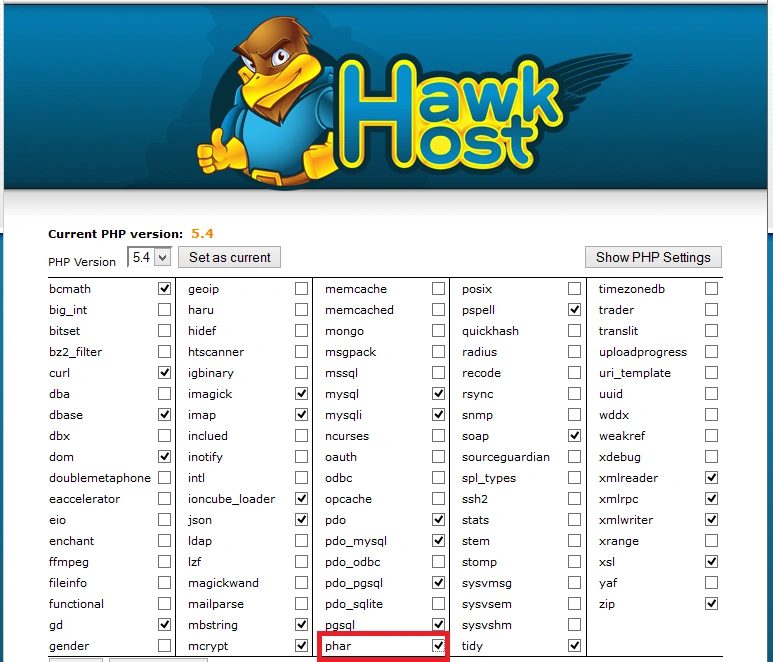
If Hawkhost provides multiple runtime options, confirm what’s recommended for your application.
Secure your site (and don’t rely on “set and forget”)
Security isn’t a single setting—it’s a routine.
Use strong authentication
- Change any default passwords immediately.
- Use unique passwords per service (hosting, email, admin accounts).
- If Hawkhost supports it, turn on two-factor authentication for your control panel.
Harden WordPress (if you use it)
If your site runs on WordPress:
- Keep core, themes, and plugins updated
- Remove plugins you don’t use
- Restrict admin access where possible
- Use reputable plugins only—avoid “free-but-risky” tools with unclear update histories
Also consider:
- Limiting login attempts (brute-force protection)
- Disabling XML-RPC if you don’t need it
- Enforcing HTTPS everywhere
Turn on HTTPS and keep certificates healthy
HTTPS should be non-negotiable. Confirm:
- Your certificate is installed correctly
- HTTP requests redirect to HTTPS
- No mixed-content warnings (secure pages loading insecure images/scripts)
If you have a CDN, ensure it’s configured to respect HTTPS and redirects cleanly.
Backups are part of security
Backups aren’t only for disaster recovery—they also help when you accidentally break a plugin, update, or theme.
Your backup routine should answer three questions:
- How often do you back up?
- Where are backups stored (preferably outside the server)?
- How do you restore if something goes wrong?
Even if your host offers backups, keep your own export strategy for key assets (database, uploads, themes, and configuration).
Manage uptime and reliability
Performance is important, but uptime is what users notice most.
Monitor your site
Use monitoring that can alert you to:
- downtime
- high latency
- SSL/certificate expiry
- unusual error rates (like 500 errors)
If you don’t want to set up your own tooling, there are simple uptime monitors available. The key is fast awareness—waiting a day to learn about an outage is avoidable.
Keep error logs under control
Review web server logs periodically to catch:
- repeated 404s (often signals broken links)
- 500 errors (often plugin/theme issues)
- spikes in traffic from bots or abusive sources
In WordPress, also check:
- application logs if available
- plugin/theme debug output (only while debugging)
Watch resource usage
If your hosting plan is smaller, your limits matter. Track:
- CPU spikes
- memory usage
- database growth (large tables or inefficient queries)
Common causes of resource spikes include:
- poorly coded plugins
- heavy image processing during page loads
- missing caching for dynamic content
Use the right approach for content and SEO
Hosting affects SEO indirectly through speed, reliability, and user experience.
Keep pages lean
Avoid shipping excessive scripts and third-party services on every page. Prioritize:
- essential layout styling
- minimal header scripts
- only the tracking tools you truly need
Structure redirects properly
If you change URLs:
- use 301 redirects for permanent changes
- avoid redirect chains (A → B → C)
- update internal links to reduce unnecessary redirects
Mind database and content bloat
Over time, CMS databases can accumulate:
- expired transients
- spam comments
- post revisions
- unused options and metadata
Clean up carefully—prefer tools or built-in maintenance features that won’t damage your content.
Troubleshooting workflow: fix faster, break less
Even with best practices, things sometimes go wrong. Having a simple process reduces downtime.
- Reproduce the issue: Is it only on some devices, browsers, or locations?
- Check logs first: Application errors often point directly to the failing component.
- Disable variables: Temporarily deactivate the newest plugin/theme change.
- Test in a staging environment (if possible): Copy your site or use maintenance mode before major updates.
- Revert changes quickly: If a plugin update causes issues, roll back rather than spending hours guessing.
A good best practice is keeping track of what you changed recently—updates, DNS edits, caching settings—so you can correlate causes and symptoms.
Guide: a practical checklist to apply this week
1) Performance pass (30–60 minutes)
- Enable gzip/Brotli (if not already).
- Turn on caching (server and/or CMS).
- Optimize images to WebP.
- Minify CSS/JS if your setup supports it safely.
2) Security pass (20–40 minutes)
- Update WordPress/plugins/themes.
- Set strong passwords and confirm admin access.
- Enable 2FA in the control panel if available.
- Confirm HTTPS redirects correctly.
3) Reliability pass (15–30 minutes)
- Set up uptime monitoring.
- Verify backup frequency and test a restore plan (even a small test).
- Review error logs for recurring issues.
Pros / Cons
Pros
- Good foundation for real-world hosting needs: Reliable environments for common website types.
- Supports performance-focused configurations: Caching, HTTPS, and typical optimization workflows.
- Reasonable operational approach: You can manage and improve your setup without needing deep technical knowledge.
Cons
- Your site’s speed and security depend heavily on configuration: Hosting can’t fully compensate for oversized images, poor plugin choices, or missing caching.
- More plugins and tools can increase risk: If you add many third-party services, your load times and vulnerability surface grow.
- Best outcomes require maintenance: Updates, log checks, and backup verification are still on you.
(These “cons” are typical for most hosts, not a unique limitation—success usually comes from consistent site management.)
Take the next step with confidence
Hawkhost hosting can work extremely well when you treat it like a platform to manage—not just a place where files sit. Focus on the essentials: correct DNS and HTTPS, caching and image optimization, strong account security, and backups you can actually restore.
If you apply the checklist above and keep a simple monitoring routine, you’ll typically see improvements in load times, fewer errors, and less stress when updates are released. That’s the real goal of hosting best practices: a site that stays fast, secure, and dependable over time.
🚀 Sign Up for hawkhost
Register for hawkhost here to receive a “lifetime discount” of up to 20%